Invite your team
Invite people by email, check who has joined, and change what each person can do.
Evergreen has no seat fees, so you can invite everyone who writes, reviews, or just watches the work.
Invite people
-
Open the invite dialog
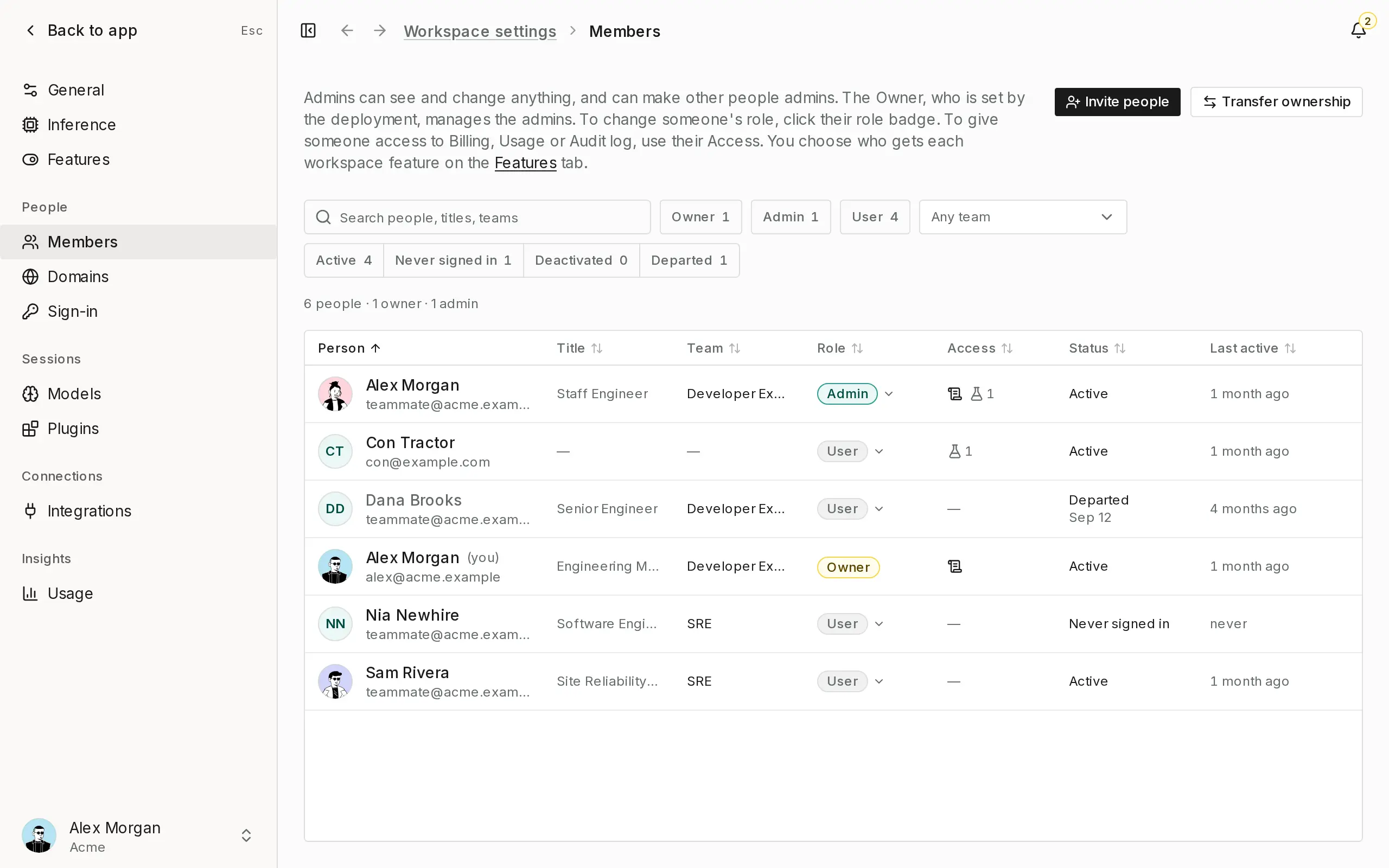
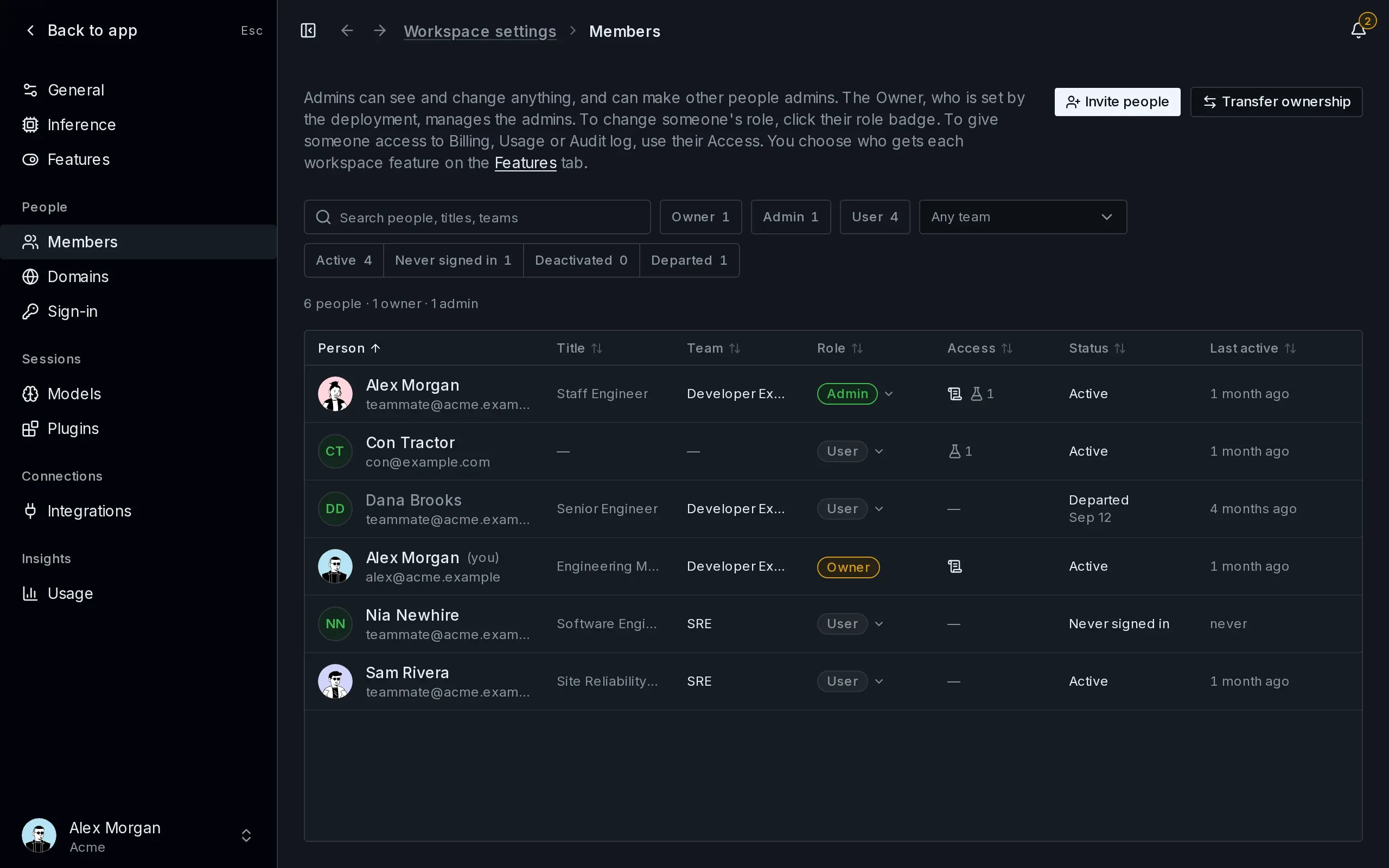
Go to Workspace settings › Members and choose Invite people. You can also open the account menu and choose Invite people.
-
Add their email addresses
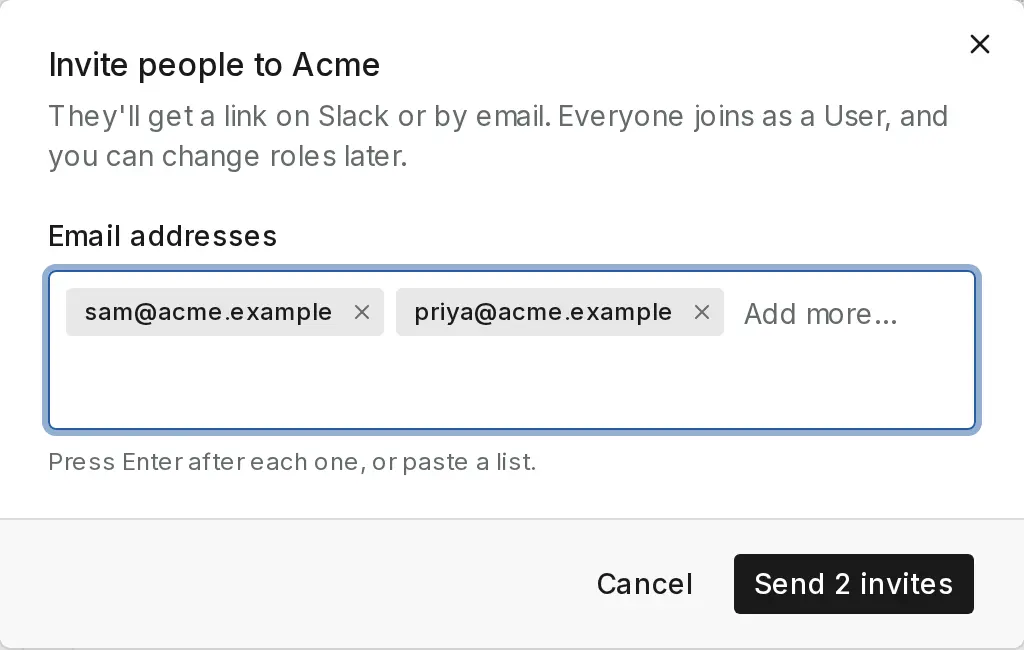
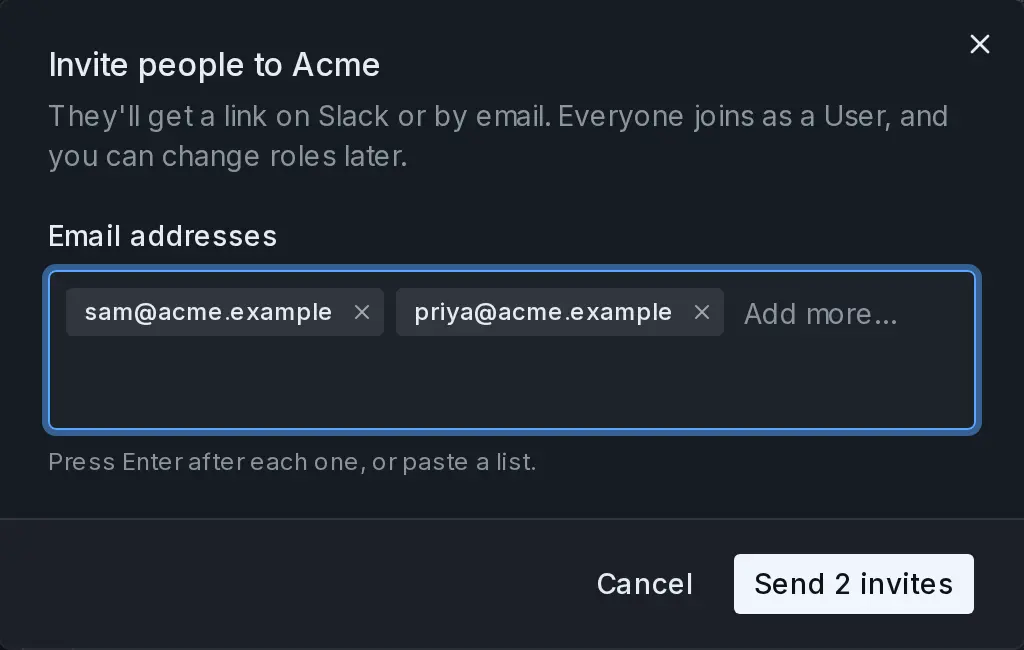
In Email addresses, type an address and press Enter, or paste a list. Evergreen checks each one as you go and flags a misspelled address or a person who’s already in the workspace.
-
Send the invites
Choose Send invite, or Send 2 invites and so on when you’ve added several. Each person gets a link by Slack if Evergreen can find them there, and by email if it can’t. Everyone joins as a User. If you go past your workspace’s daily limit, Evergreen queues the rest and sends them the next day.
What each role can do
You can change someone’s role afterwards on Workspace settings › Members by choosing their role.
| Role | What they can do |
|---|---|
| Owner | Created the workspace and manages everyone, including admins. |
| Admin | Can see and change anything in Evergreen, and can make other users admins. |
| User | Runs their own sessions and sees what the team shares. |
Only the Owner can take the Admin role away from someone.
Follow your invitations
Invitations that haven’t been accepted yet appear under Pending invitations on the Members page. Open a row’s menu to Copy invite link, Resend invite, or Withdraw invite.
Note
By default, any member can invite people too. To change that, turn off Members can invite under Workspace settings › General, and only Owners and Admins can. On a plan with verified domains, turn on Only our verified domains there to invite only people whose email is on one of them. Those invitations don’t count toward the daily limits.
Next
Run your first session with your team watching.
Last updated