Add credit
Add a card and a receipts email, add funds so sessions can run, or use your own Anthropic, OpenAI, or xAI key.
Evergreen bills sessions against your workspace’s credit as they run. You add credit once, with a card, and then top it up when you like. If you’d rather pay your model provider directly, you can use your own key instead.
Before you begin
- You’re an Owner or Admin, or you’ve been given the Billing grant. Everyone else sees Billing is for admins and is asked to request the grant from an admin.
- You have a card you can use for the workspace, and an email address for receipts.
Add a card and a receipts email
-
Open Billing
Go to Workspace settings › Billing. The Overview shows your balance and what’s left to set up.


-
Add a card
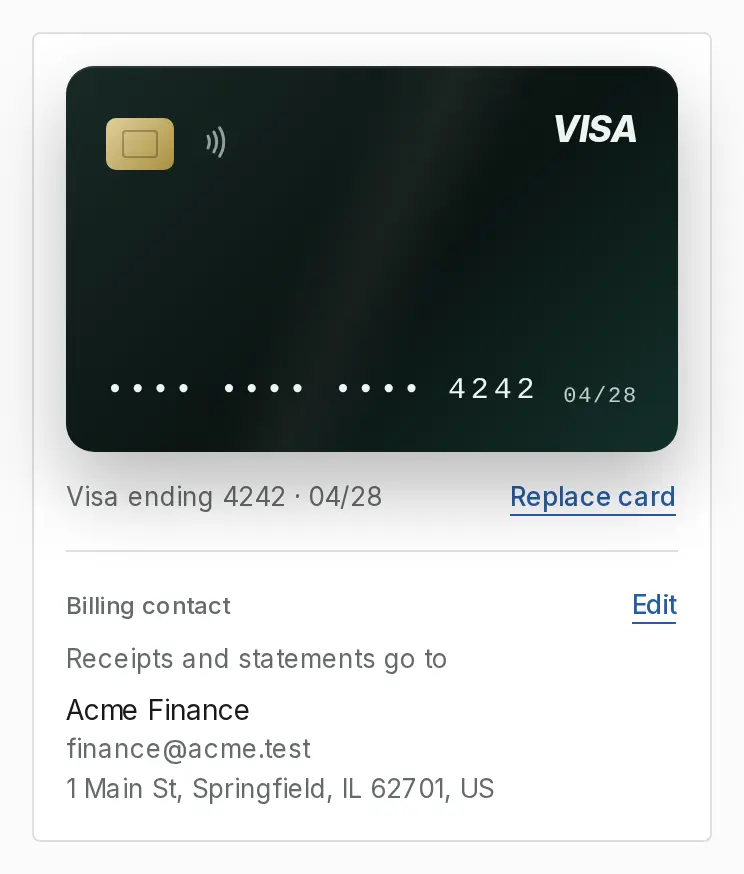
Choose Add card, enter the card and its billing address, and choose Save card. Evergreen stores the card with Stripe and keeps only its brand, last four digits, and expiry. The card is charged only when you add funds or when auto-reload runs.
-
Check your billing contact
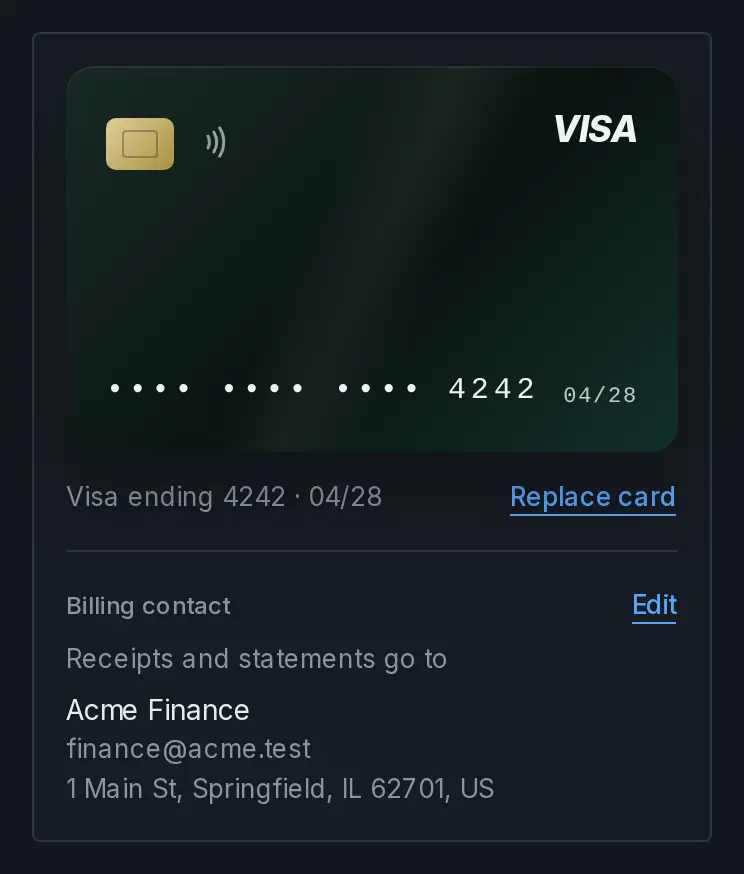
Billing contact names where receipts and statements go. Saving your first card fills in your own email, so check it and choose Edit to change the Billing email, name, or address.
Add funds
Add funds stays unavailable until the workspace has both a card and a receipts email. The line under it says which one is missing and opens that step.
-
Choose an amount
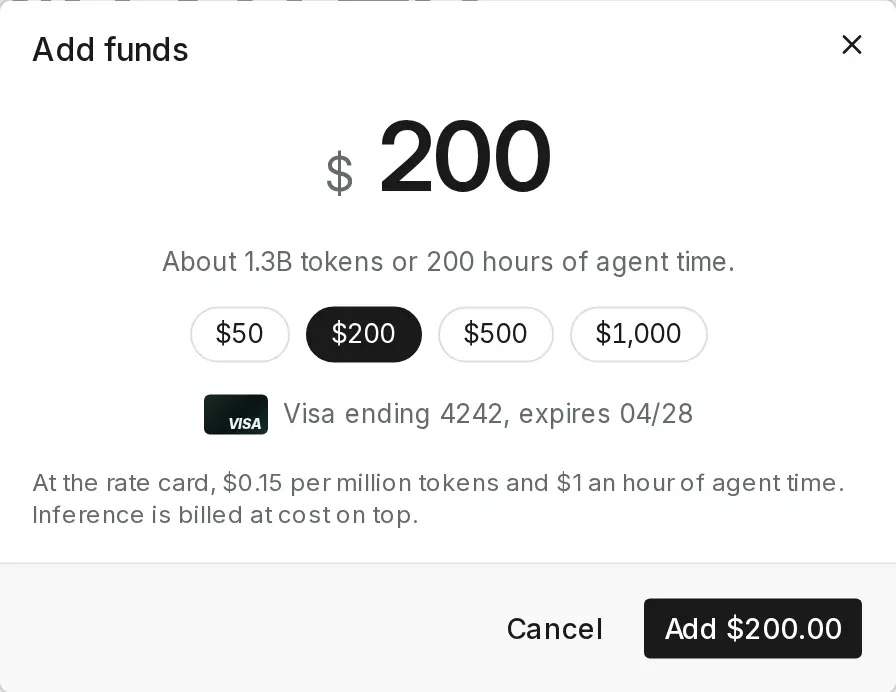
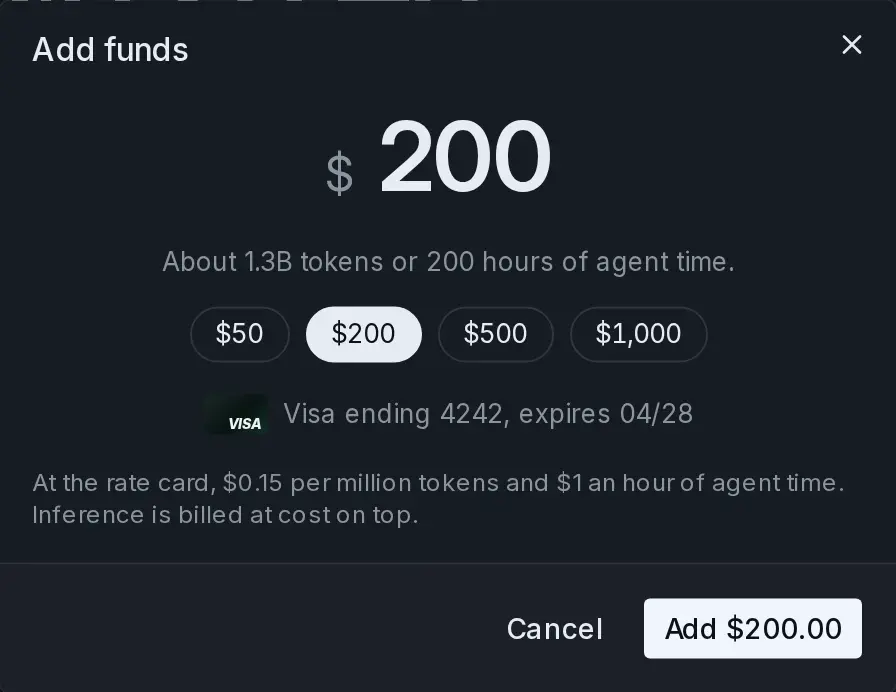
Choose Add funds, then pick $50, $200, $500, or $1,000, or enter a Custom amount between $50 and $10,000. The dialog shows roughly what the amount buys.
-
Confirm the charge
Choose the button with the amount on it. Evergreen charges the card you saved, adding sales tax where it applies. If your bank wants to confirm the payment, the dialog asks you to finish its check. A receipt goes to your billing email, and the balance goes up once the charge clears. Sessions can start as soon as it does.
Sessions bill against this balance for tokens at 15¢ per million on top of the model’s price, agent time at $1 an hour, and workspace storage. When the balance is used up, sessions stop taking new turns, so add funds before that happens, or turn on Auto-reload to top it up for you.
Tip
Your free week waives Evergreen’s own charges. Models and knowledge are still billed from the first turn. On Evergreen’s models, add a card and funds before your first session, even in your free week. On your own key you don’t need either, because your provider bills the model. Your first week lists what it waives.
Use your own key instead
If you have an Anthropic, OpenAI, or xAI account, you can have sessions run on your own API key. Your provider then bills you for the model directly, and Evergreen’s platform fee and agent time stay on your Evergreen bill. Only Owners and Admins can set a key.
-
Open Inference
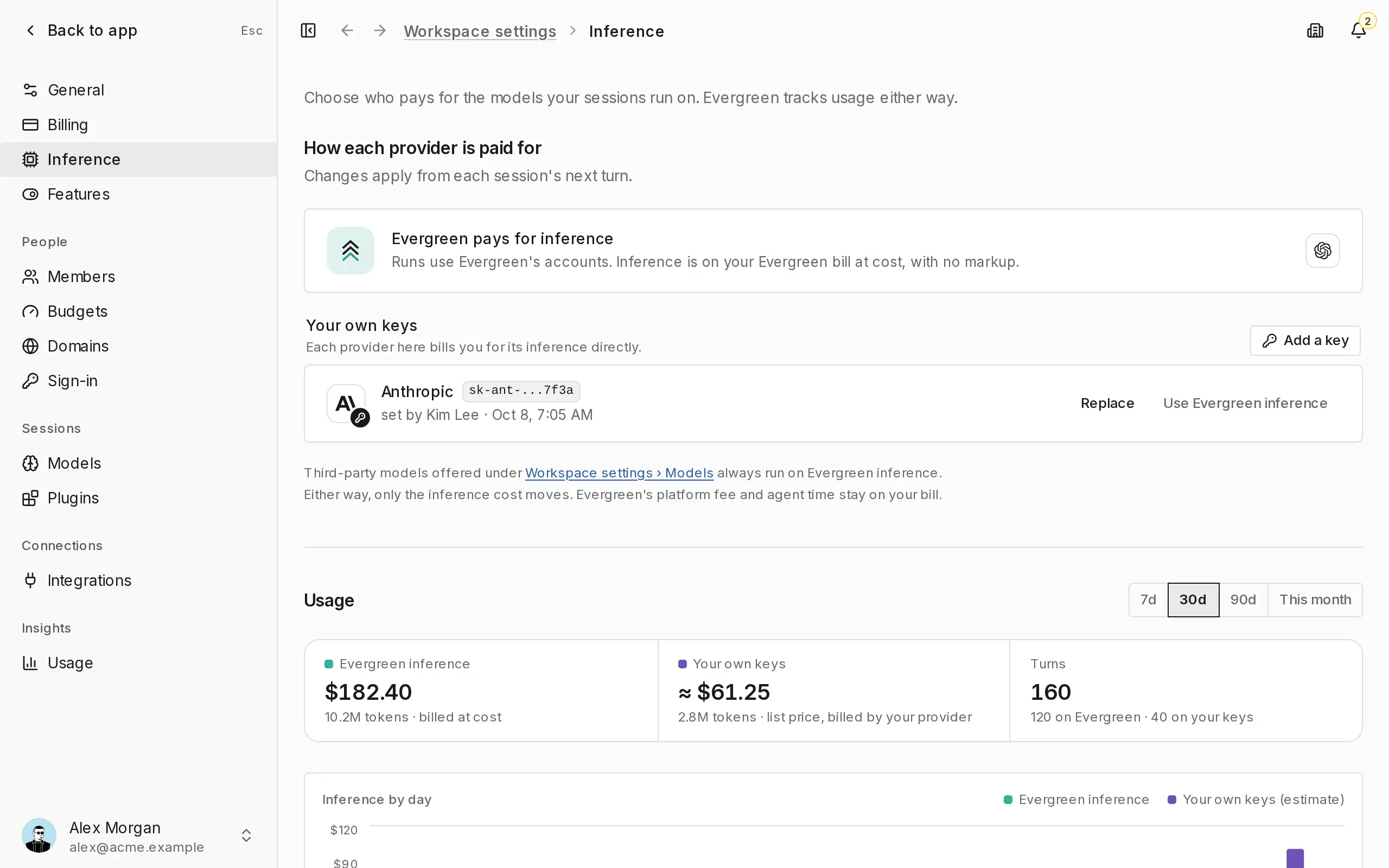
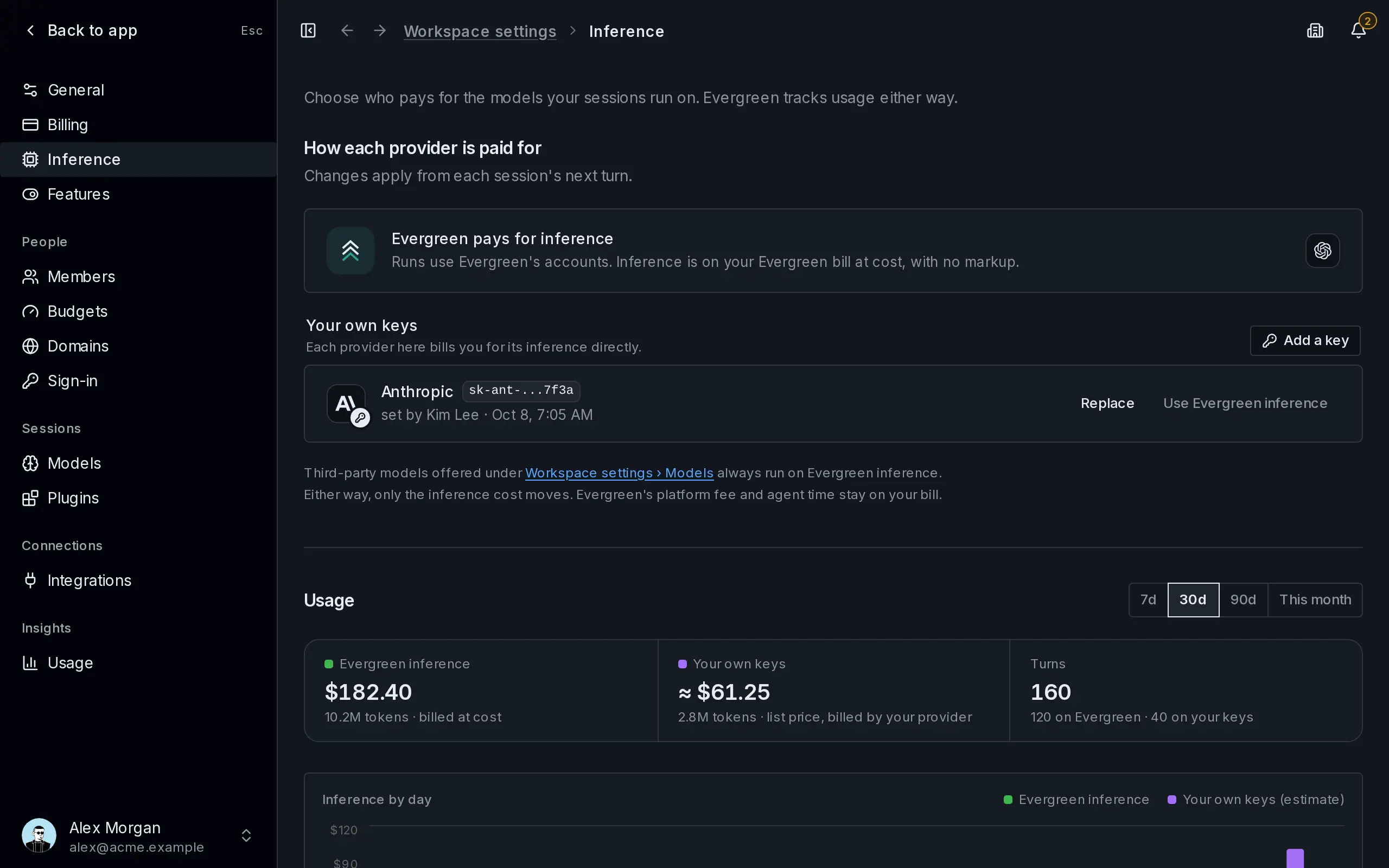
Go to Workspace settings › Inference. Under How each provider is paid for, the Evergreen pays for inference card shows the providers Evergreen’s accounts pay for, and Your own keys lists every provider on a key of yours.
-
Add the key
Choose Add a key and pick the provider. Paste the key into API key and choose Save key. Evergreen checks the key with the provider and stores it encrypted. Afterwards you only see its last few characters, with who set it and when. The change applies from each session’s next turn.
Note
Third-party models under Workspace settings › Models, and the search behind your workspace’s knowledge, always run on Evergreen inference. To go back, choose Use Evergreen inference on the provider’s row. The key keeps working in your provider account until you revoke it there. If Your own keys says Bringing your own key isn’t available for this workspace, your workspace doesn’t have it turned on.
Next
Last updated