Connect Slack
Add Evergreen to your Slack workspace so your team can start sessions and answer the agent without leaving Slack.
Once Evergreen is in your Slack workspace, anyone on your team can start a session with /evergreen, follow it in a
channel, and approve plans from buttons in Slack.
Before you begin
- You’re an Owner or Admin of your Evergreen workspace.
- You can add apps to your Slack workspace, or a Slack admin is ready to approve the request.
Add Evergreen to Slack
-
Find the Slack row
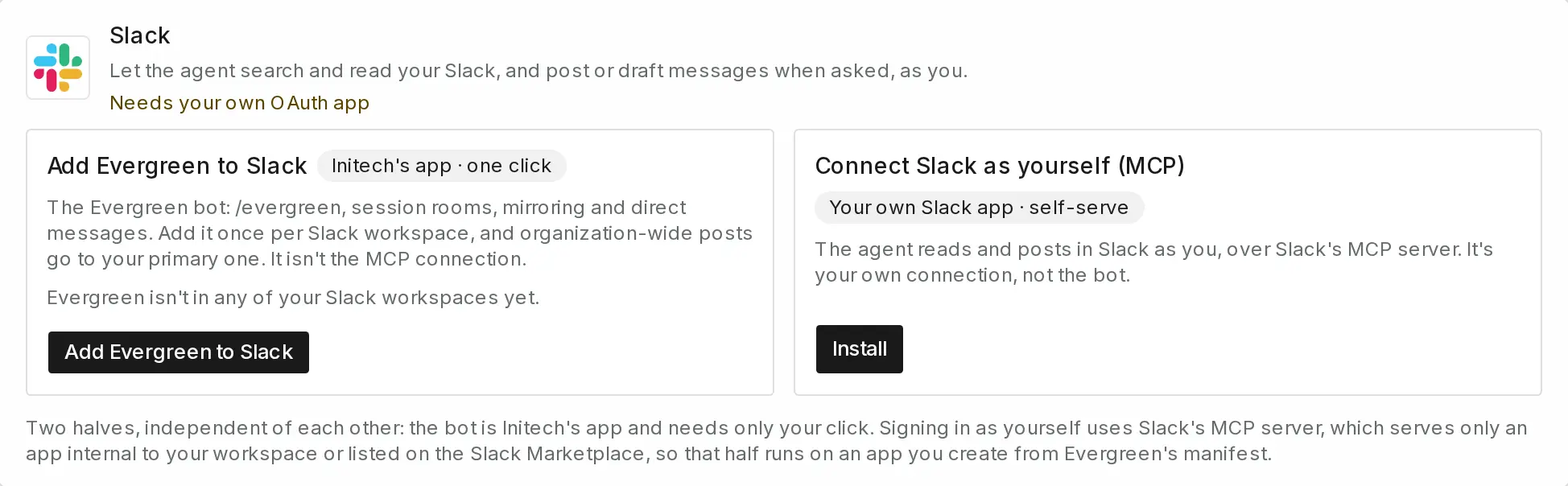
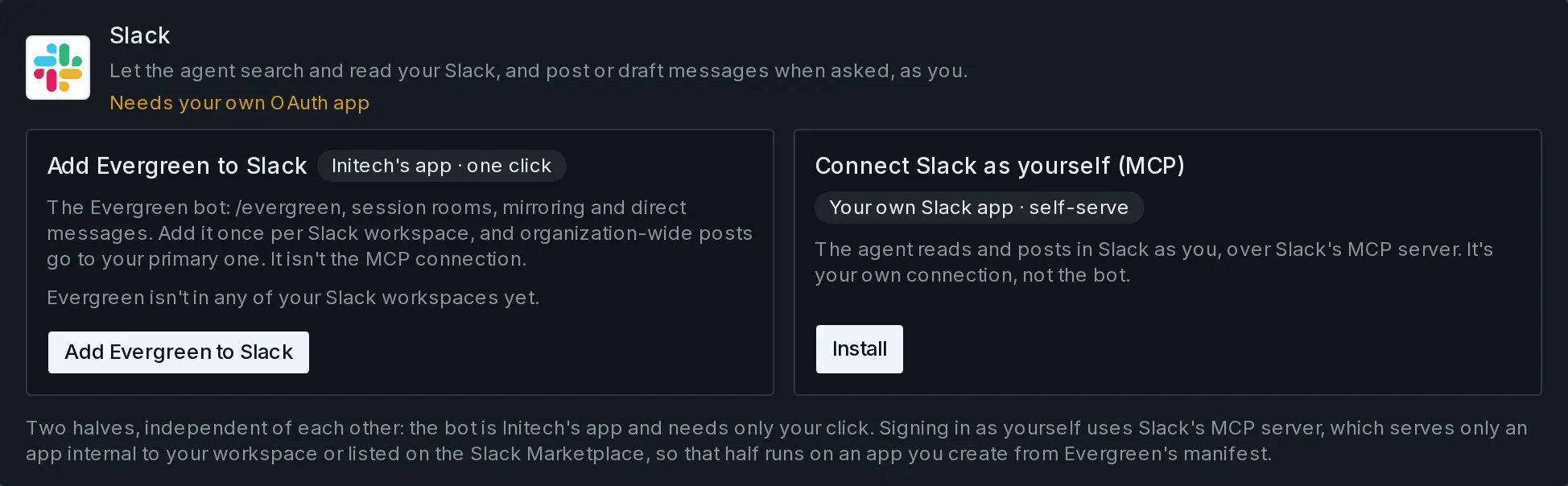
In Evergreen, go to Workspace settings › Integrations and find Slack. The row has two halves. The left one, Add Evergreen to Slack, is the bot for your team. The right one, Connect Slack as yourself (MCP), is your own connection, and you don’t need it for this.
-
Add Evergreen to Slack
Choose Add Evergreen to Slack and approve Evergreen in the Slack page that opens. Slack sends you back to the integrations list, which says how it went, and the workspace shows up in the row. Members who aren’t Owners or Admins see where Evergreen is in this half, with nothing to press.
-
Add more workspaces if you have them
Choose Add another workspace for each Slack workspace your team uses. The first one is the primary workspace. Posts that belong to the whole Evergreen workspace, like a new session’s channel, go there. Choose Make primary on another one to change that.
Try it
Each person on your team who has signed in to Evergreen once can now use it from Slack. Evergreen finds them by their email address, so there’s nothing for them to link.
- Type
/evergreenon its own to open a form with Start a session and My sessions. - Type
/evergreen start acme/web add a /healthz endpointto start a session on the repository you name. - Mention
@Evergreenin a channel, or send it a direct message, and say what you want done.
Tip
Each session gets its own private channel by default. Anything a person writes there while the agent is working becomes its next instruction, and plans and questions arrive as cards with buttons.
Note
This is Evergreen’s own Slack app. It’s separate from Connect Slack as yourself (MCP), the row’s right half and the Slack card under Settings › Integrations, which lets the agent search and read your Slack, and post or draft messages when you ask, as you.
Next
Connect CI so the agent can read failing jobs, or invite your team.
Last updated