Run your first session
Write a brief, approve the agent's plan, answer its questions, and follow the pull request until it merges.
A session is one task, from your brief to a merged pull request. Pick something small and real for the first one, so you can see the whole loop.
Before you begin
- You’ve connected your code and picked at least one repository.
- Your workspace has credit or an own key.
Start the session
-
Open New
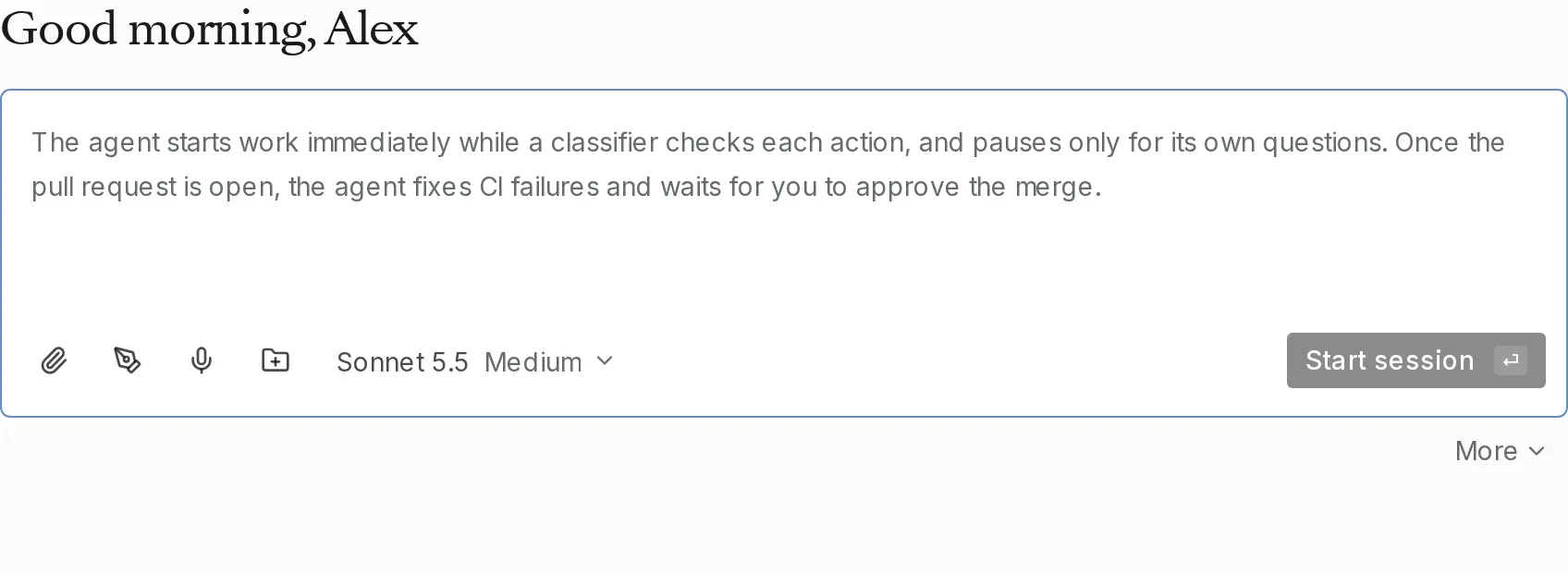
Choose New in the sidebar. The page opens on the brief box.
-
Write your brief
Say what you want done, in your own words, and name the repository. A small task that touches one or two files works well:
In acme/web, add a GET /healthz endpoint that returns 200 with {"ok": true}, and a test for it. -
Choose how it runs
Choose More under the box. The first chip in How it runs is the mode the session starts in, Auto unless you’ve set your own default under Settings › Defaults. In Auto, the agent starts work straight away and pauses only for its own questions. For your first session, choose Plan so the agent reads the code and writes a plan, and changes nothing until you approve it. The empty box describes what will happen with the chips as you’ve set them.
-
Choose who can find it
The Session row’s chip says who can find the session. It’s Public by default, so everyone in your workspace can find it and follow along. Choose Private and Only people you add to keep it to the people you give access, and a lock shows before its title in your lists. A session in a private or team project starts private.
-
Start the session
Choose Start session. You can switch the mode at any time while it runs, from the chip beside the message box.
Approve the plan
If you started in Plan, the session shows The agent has a plan and is waiting for your approval when the plan is ready. Read it, and choose Open full plan to see all of it.
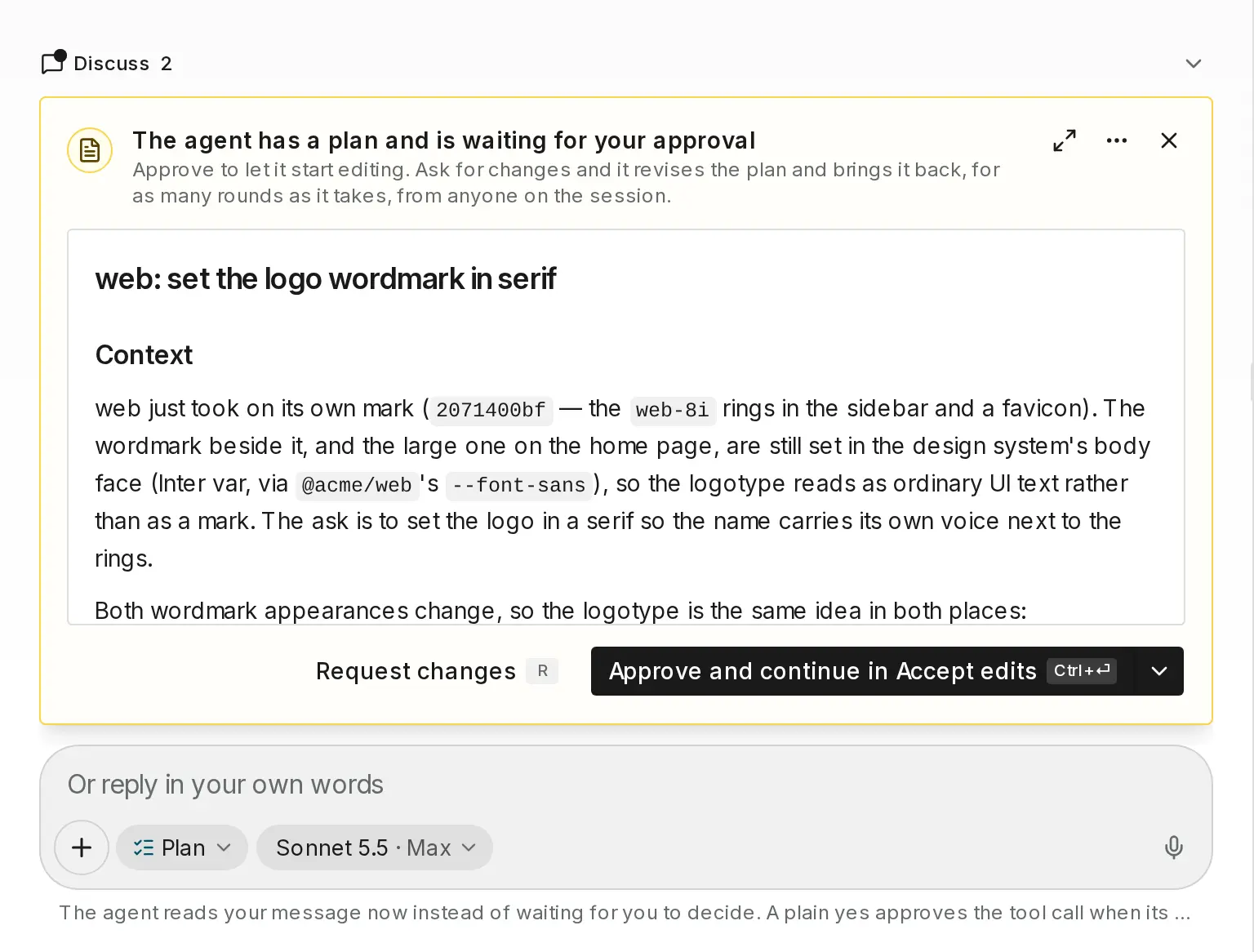
- Choose Approve and continue in a mode, such as Approve and continue in Auto, to let the agent start editing in that mode. The arrow beside it opens Approve in another mode.
- Choose Request changes, say what should change, and choose Send feedback. The agent revises the plan and brings it back. You can do this as many times as you need to.
Answer the agent
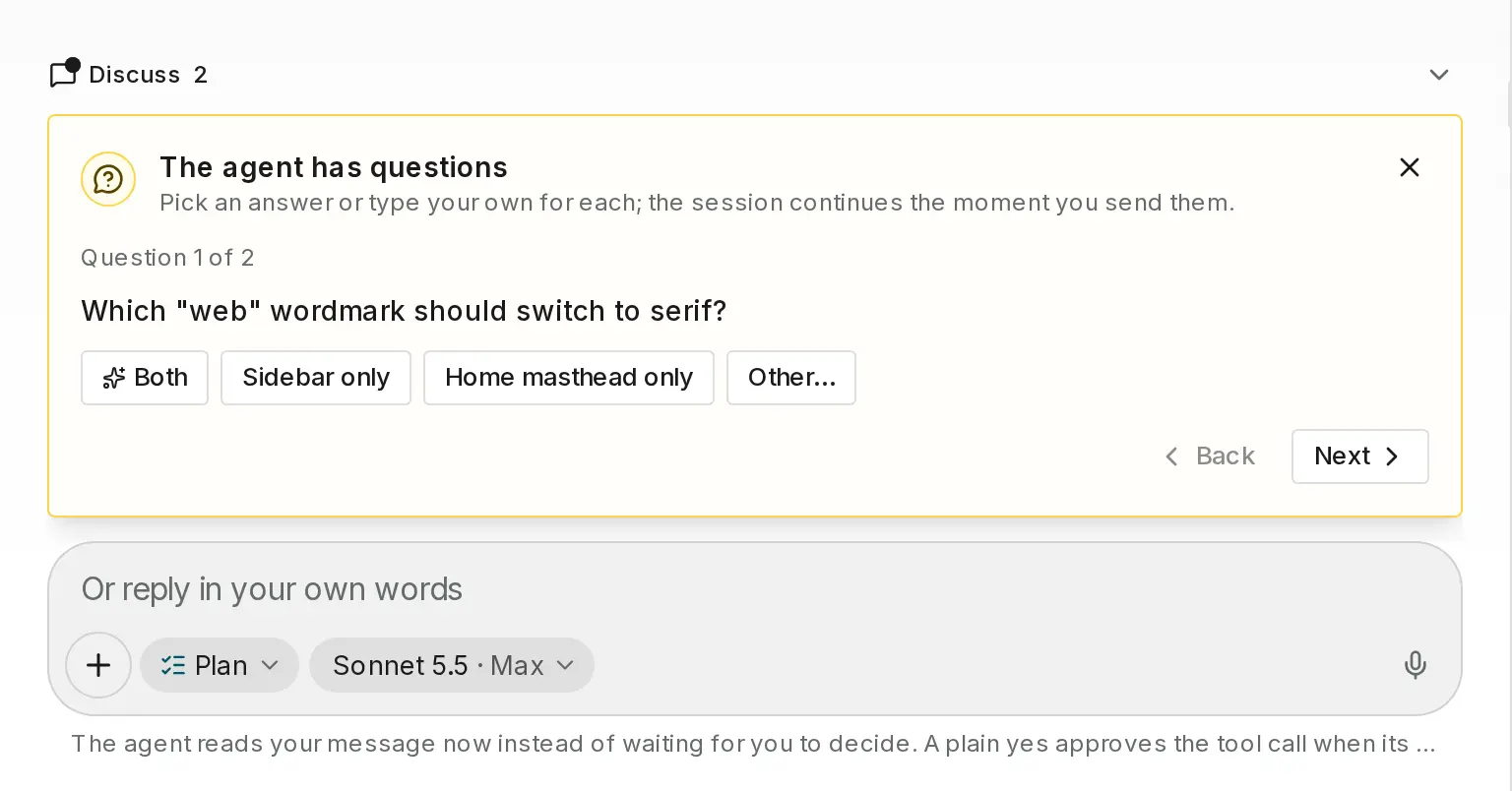
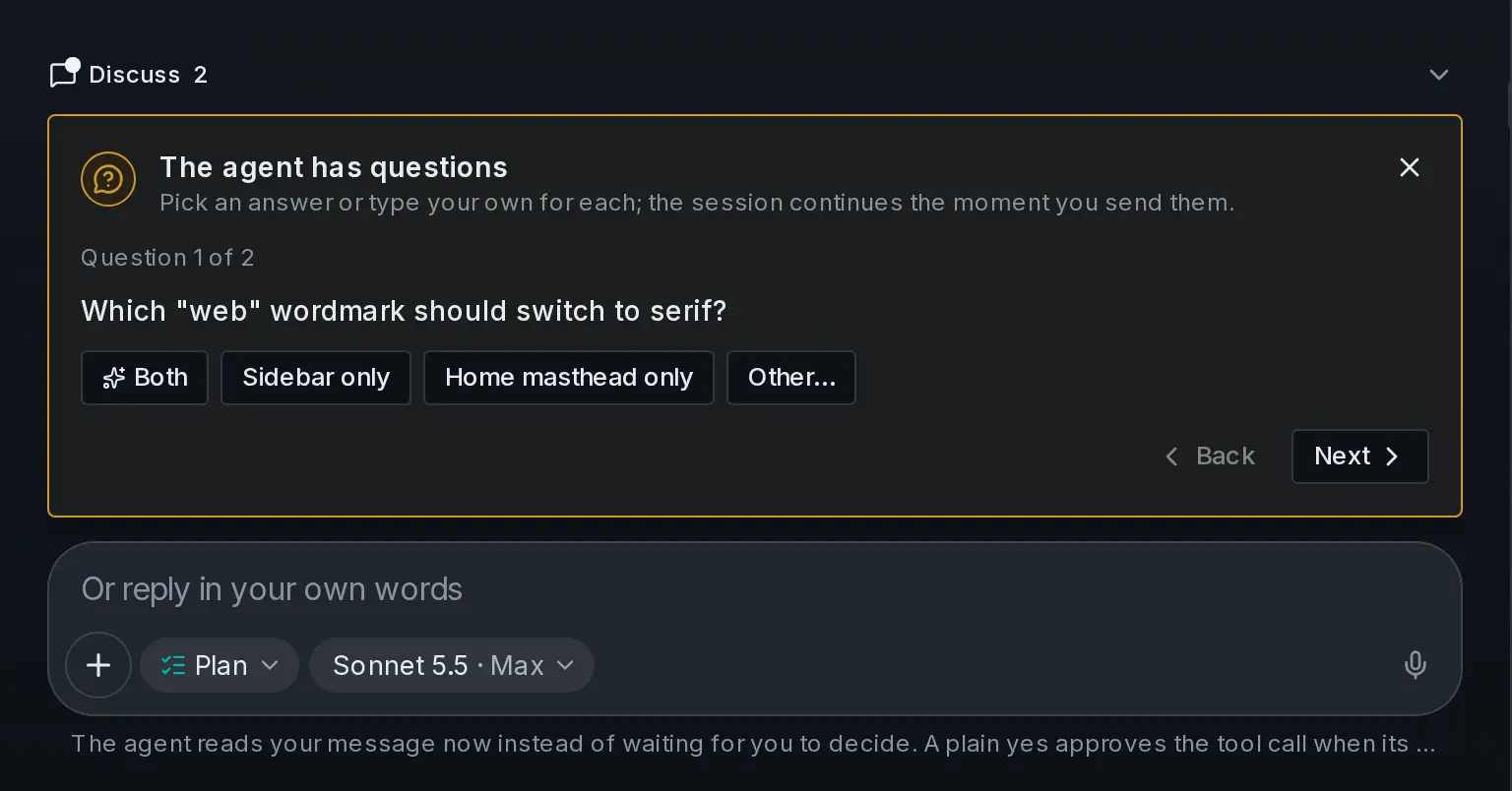
If the agent needs a decision, the session shows The agent has a question, or The agent has questions with one question per page and Next to move on. Choose one of the answers, or choose Other… and type your own, then choose Send answer (Send answers for several). The agent carries on as soon as you send it. You can also write to the agent in your own words in the box under the card.
Follow the pull request
When the agent has pushed its work, the pull request appears under Pull requests in the session’s sidebar, with its state: Draft, Open, Checks pending, Checks failing, Changes requested, Approved, In the merge queue, Merged, or Closed. The Shepherd section below it says what the agent is doing about it.
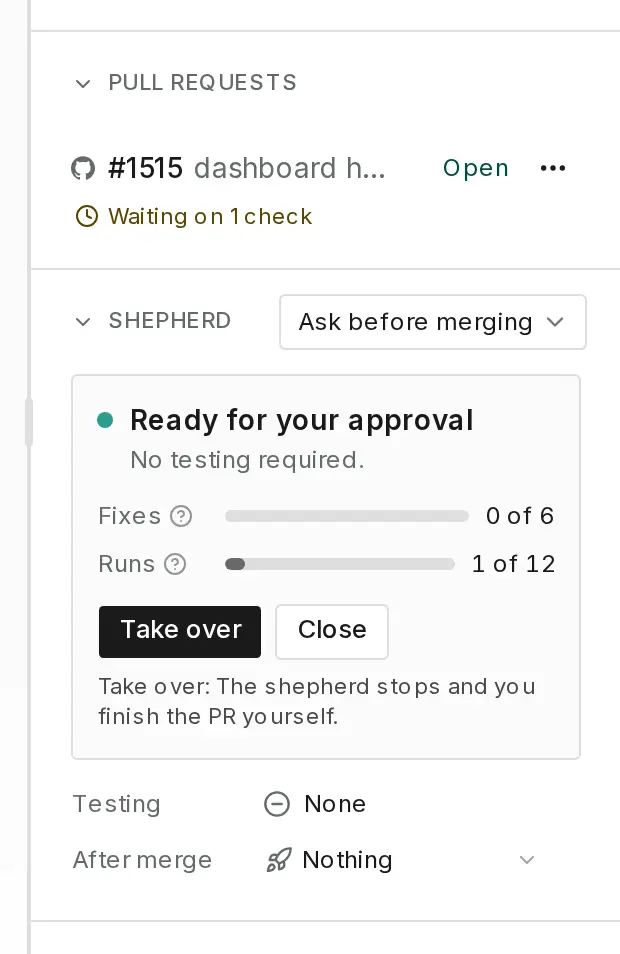
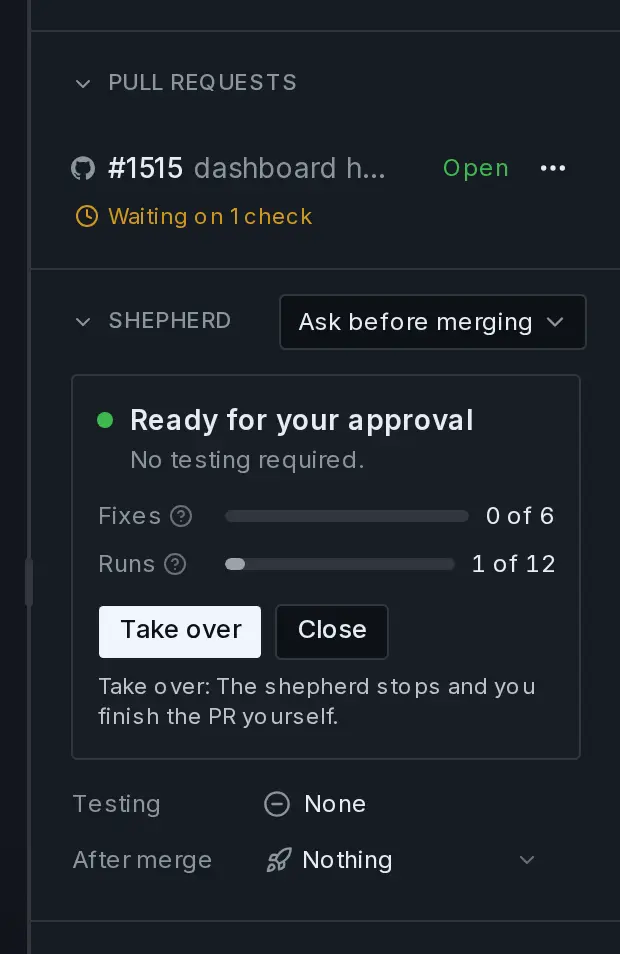
What happens next depends on the merge mode, the last chip in How it runs. With Ask before merging, the default, the agent fixes failing checks and review comments on its own, then waits. When the pull request is ready, choose Approve & merge. With Auto merge when green, the agent merges it once the checks pass and your repository’s rules allow it.
Tip
Choose Take over in the Shepherd section if you’d rather finish the pull request yourself. The agent stops working on it.
The session ends as Merged once the pull request is in.
Next
You’ve been through the whole loop. Invite your team so they can start sessions too.
Last updated