Create your workspace
Sign up with an emailed code or Google, add your phone number, name your workspace, and see when your free week starts.
Everything you do in Evergreen happens in a workspace. Signing up creates your account and your first workspace, and you become its Owner. If someone invited you, or your company’s workspace lets everyone with your email domain join, signing up puts you in that workspace instead.
Sign up
-
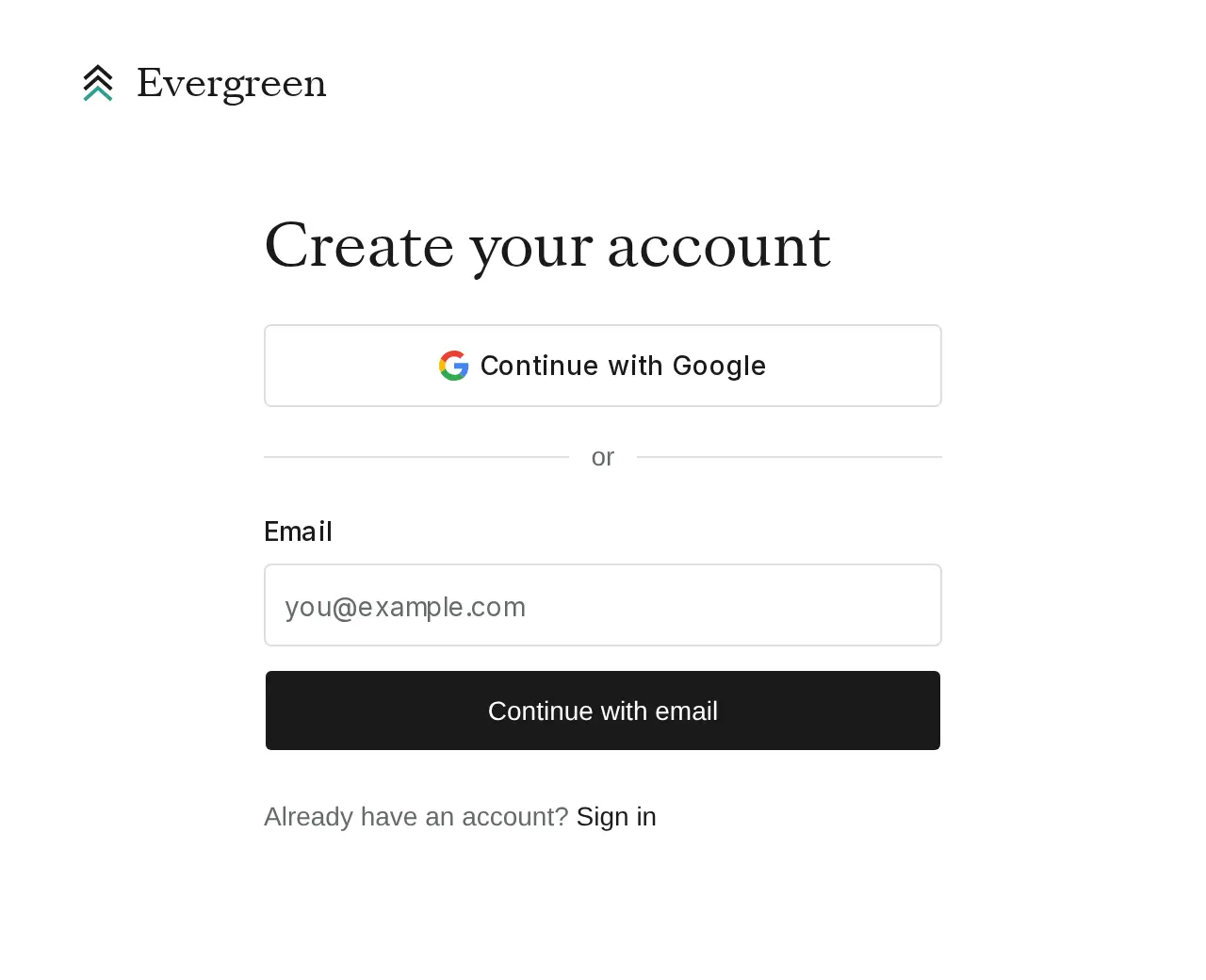
Choose how to sign up
On the Evergreen website, choose Sign up. Then choose Continue with Google, or enter your work or personal email address and choose Continue with email. There’s no password to make.
-
Enter your code
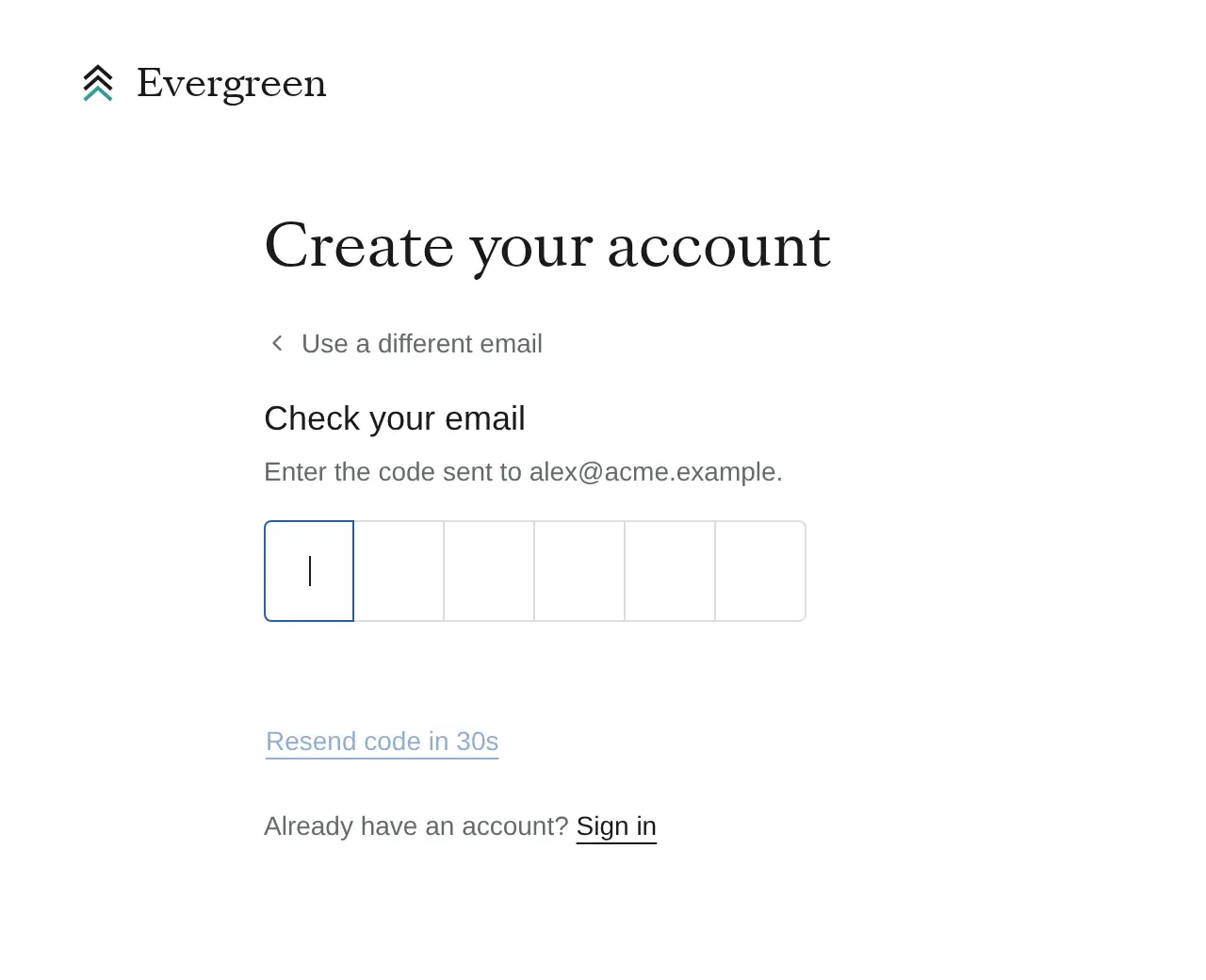
If you used email, Evergreen sends a six-digit code to that address and shows Check your email. Type the code and it signs you in. The code works once, in the browser that asked for it, and expires after 10 minutes. If it doesn’t arrive, choose Resend code when the countdown ends.
-
Add your phone number
When signing up makes a new workspace, Evergreen asks you to Add your phone number. Enter the mobile number from your phone plan and choose Text me a code, then type the code from the text. Virtual numbers like Google Voice and landlines can’t be used. Evergreen doesn’t ask when you’re joining a workspace you were invited to.
-
Tell Evergreen your name
If Evergreen doesn’t have your name yet, it asks What should we call you? Enter your first and last name so your teammates know who you are, and add a nickname if you like.
-
Set up your workspace
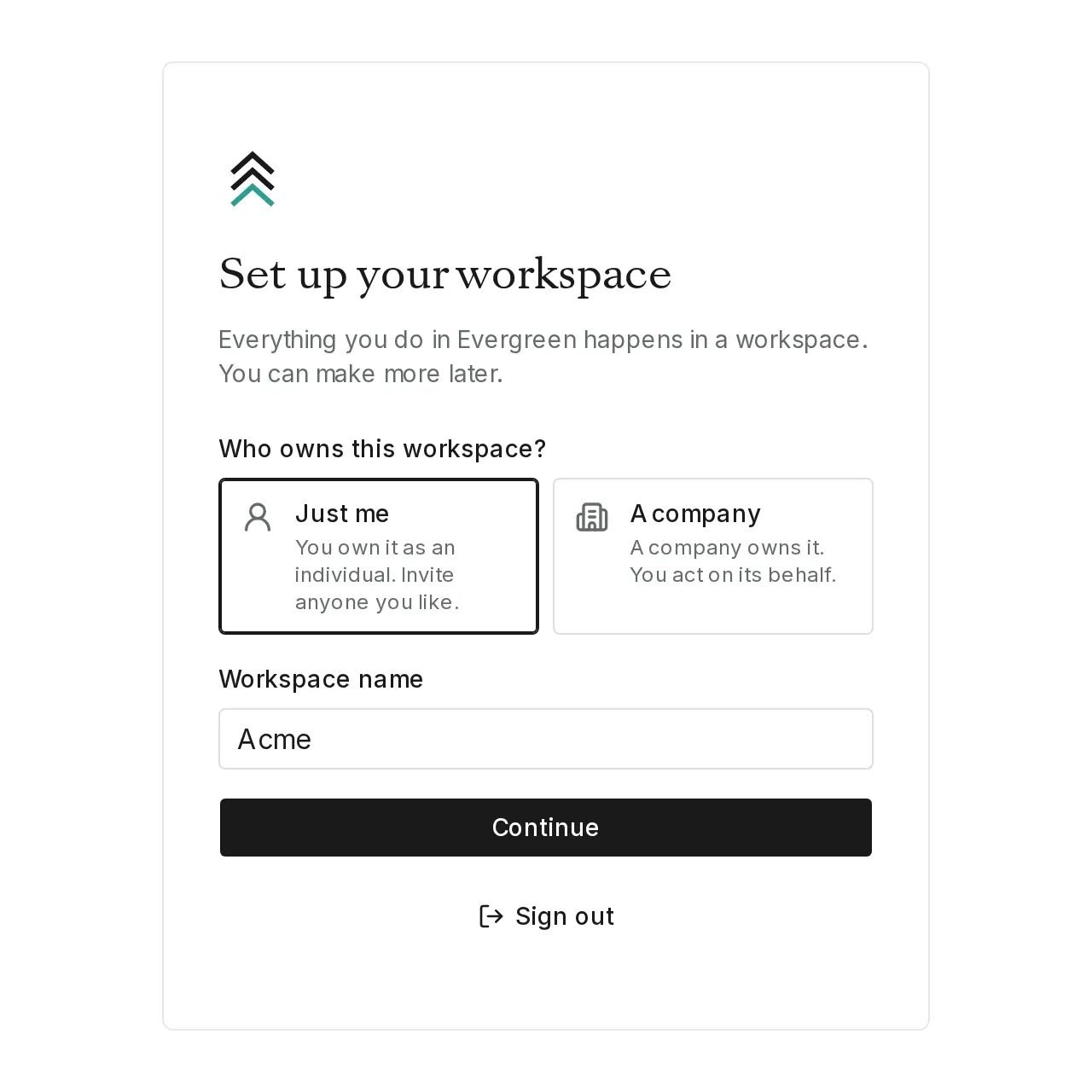
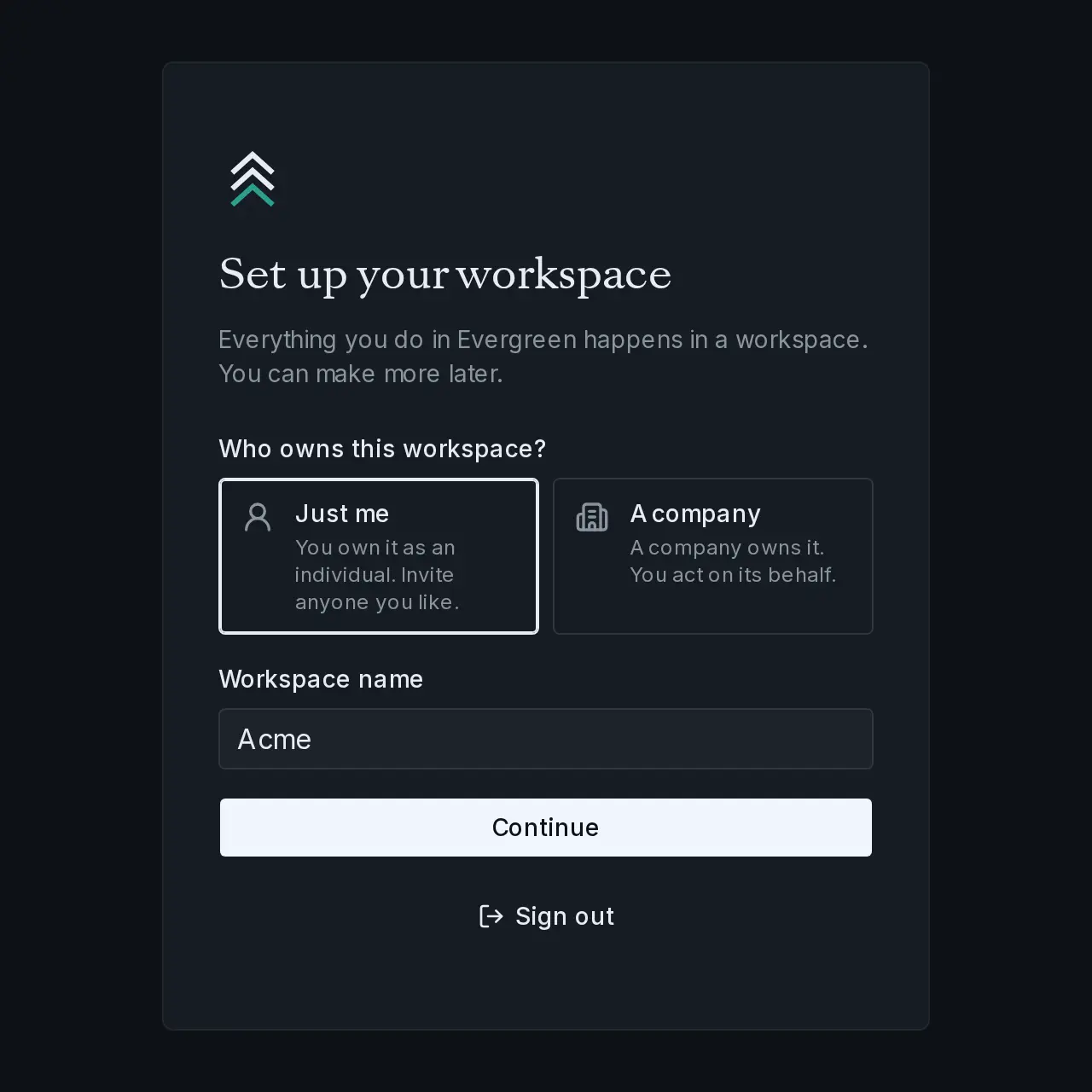
Answer Who owns this workspace? Choose Just me if you own it as an individual, or A company if a company owns it and you act on its behalf. A company needs its name in Company, and you accept the Terms of Service on the company’s behalf. Then name the workspace in Workspace name and choose Continue.
Note
Either way, you’re the workspace’s Owner. The answer only records who owns it. If you choose A company, Evergreen uses the company’s name to fill in your billing contact later.
Your free week
A workspace you own pays no platform fee, agent time, workspace storage, or search for seven days, counted from its first session. On your own Anthropic, OpenAI, or xAI key you don’t need a card, and the week starts on its own when you run your first session. Models and knowledge are still billed from the first turn: models at the provider’s price (or by your provider, on your own key), and knowledge at AWS’s price. On Evergreen’s models, that means you’ll add a card and funds before your first session. Each person gets one free week in the first workspace they own that runs a session.Warning
The free week waives Evergreen’s own charges, not the model’s. On Evergreen’s models, add a card and funds before you start your first session. On your own key, you don’t need either. Add credit shows both.
Make another workspace
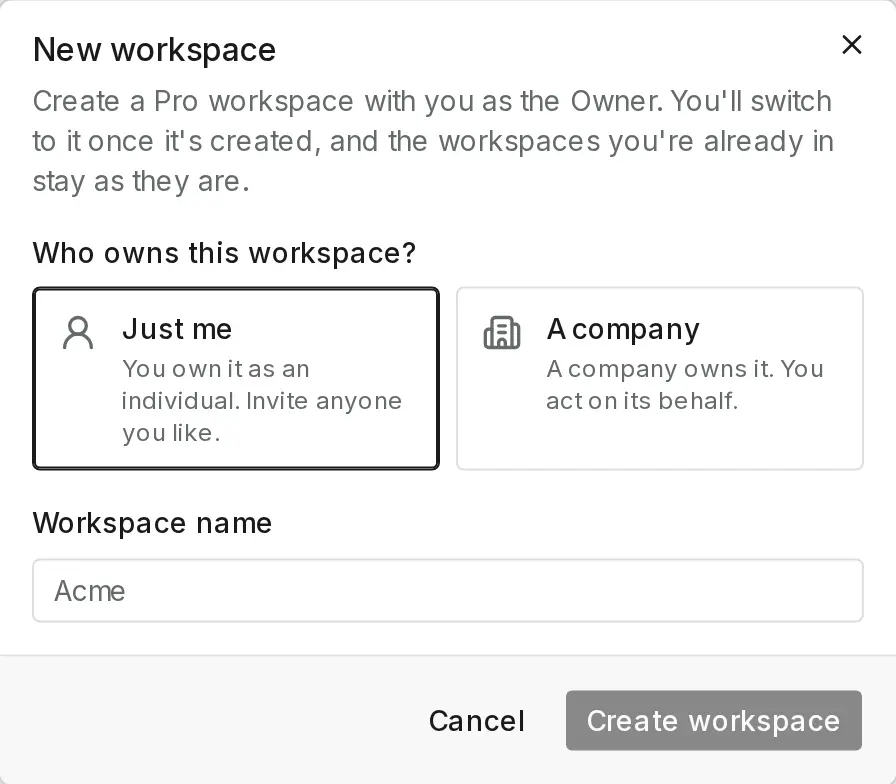
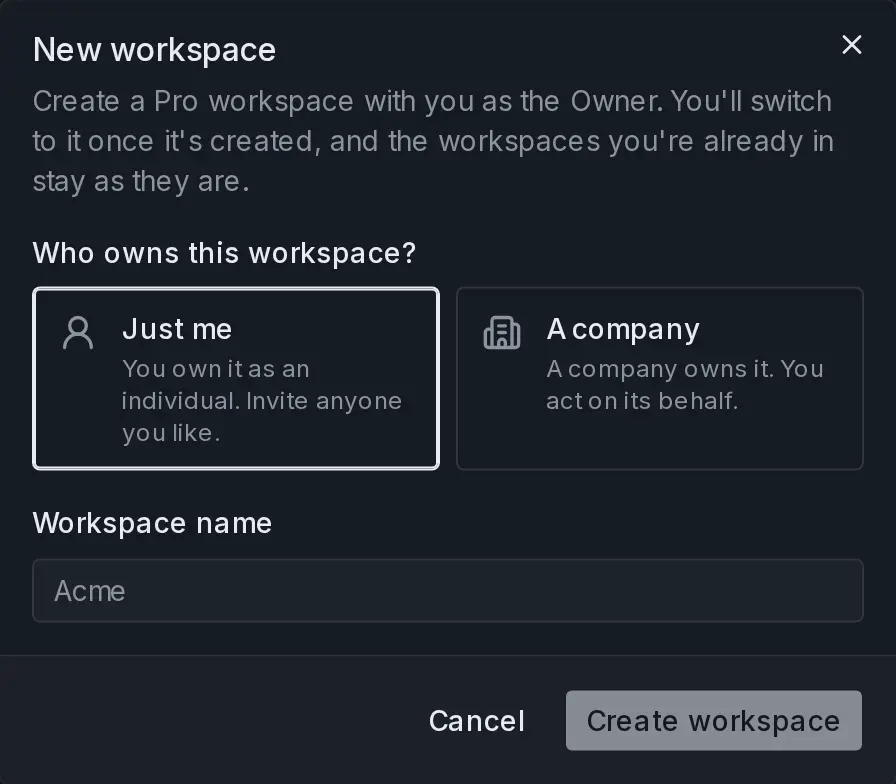
You can belong to several workspaces and switch between them from the account menu. To create another, open the account menu, choose Manage workspaces, then New workspace. Choose who owns it, name it, and choose Create workspace. You can create three workspaces a day.
Next
Connect your code so the agent can work on your repositories.
Last updated